
Introduction
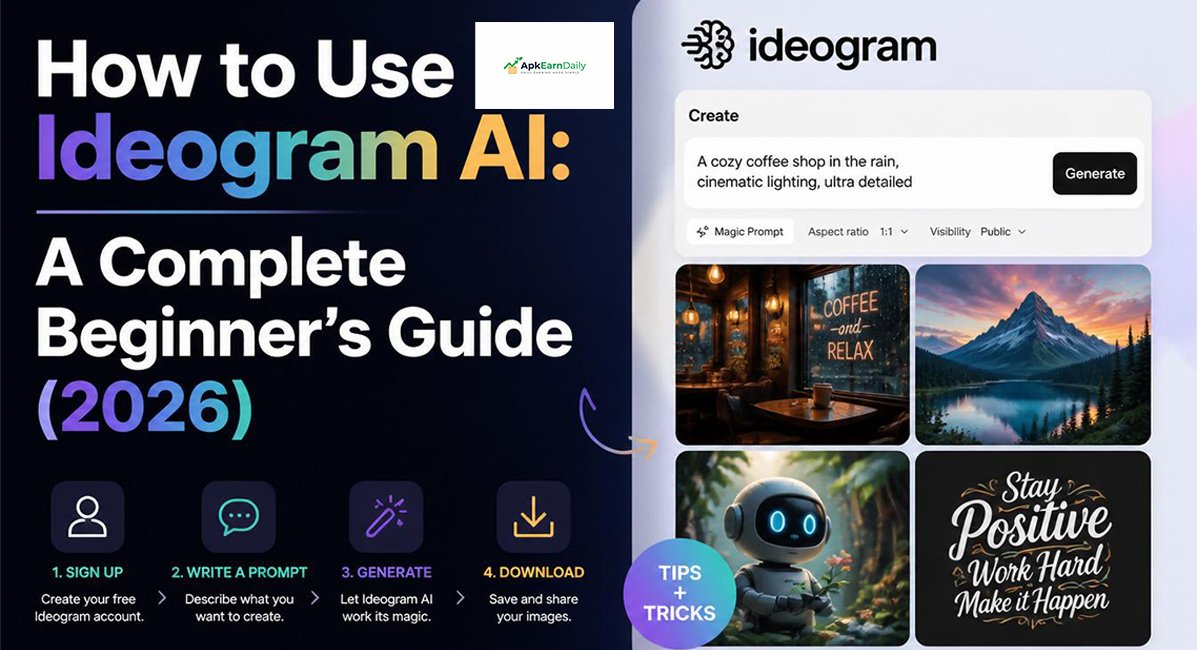
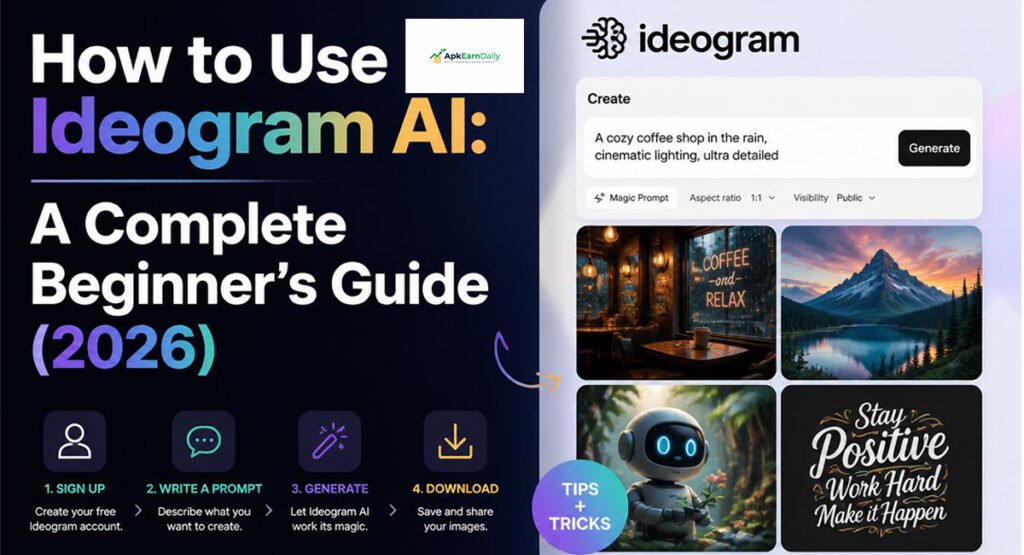
Learning how to use Ideogram AI has become an essential skill for creators, bloggers, marketers, and students who want to produce stunning visuals without advanced design experience. This complete Ideogram AI tutorial will show you how to transform simple text into professional-quality images using one of the most powerful AI image generator platforms available in 2026.
From creating your free account to writing effective prompts and choosing the best settings, you’ll discover everything you need to know. Whether your goal is AI image creation, social media content, or business branding, this beginner-friendly guide will help you create impressive visuals with confidence using Ideogram AI.
What Is Ideogram AI?
What Does Ideogram AI Do?
Ideogram AI is a powerful AI image generator that turns your written ideas into high-quality visuals within seconds. Instead of drawing manually, you describe what you want, and the system creates unique images using advanced AI technology. This modern text-to-image AI platform helps beginners and professionals produce eye-catching Visual content for blogs, businesses, and Creative projects.
If you want to explore more AI platforms, check out our Best Free AI Tools in 2026.
One of the biggest strengths of Ideogram AI is its ability to generate clear text inside images. Many AI tools struggle with words, but Ideogram AI delivers excellent AI typography, making it ideal for Poster design, Banner design, Social media graphics, and Marketing visuals.
How Does Ideogram AI Work?
Learning how to use Ideogram AI is easier than most people expect. You type a description, often called an AI prompt, into the prompt box. The AI studies your request, understands the objects, colors, lighting, and style, then creates an image that matches your description. This process is known as Image generation, and it takes only a few seconds.
For example, if you type:
“A modern coffee shop in Tokyo at sunset with warm lighting and realistic photography.”
The AI analyzes every detail and creates an original image based on your description. The better your Prompt writing and Prompt engineering, the more impressive your results become.
Who Should Use Ideogram AI?
One reason Ideogram AI for beginners has become so popular is that anyone can use it. You don’t need experience in Graphic design or expensive software. A beginner can create professional-looking images after only a few minutes of practice.
Bloggers can design featured images, YouTubers can make thumbnails, teachers can prepare Educational graphics, marketers can create promotional content, and freelancers can produce stunning AI graphics for clients. Even small businesses can create Marketing graphics without hiring a professional designer.
Why Is Ideogram AI Different from Other AI Image Generators?
Many AI image tools focus only on pictures, but Ideogram AI pays special attention to Typography generation. This means it can generate readable text inside images, making it perfect for logo design, posters, advertisements, and branded content.
Another advantage is its clean Dashboard and beginner-friendly User interface. You don’t need technical knowledge to start creating professional visuals. The platform also offers multiple Style presets, flexible Aspect ratio options, and advanced Image customization, giving you more creative freedom than many competing tools.
Quick Comparison Table
| Feature | Ideogram AI | Typical AI Image Generator |
| Text inside images | Excellent | Often inaccurate |
| Beginner friendly | Yes | Varies |
| Multiple artistic styles | Yes | Yes |
| Logo creation | Excellent | Average |
| Poster creation | Excellent | Good |
| Easy dashboard | Yes | Sometimes complex |
| Fast image generation | Yes | Yes |
Key Features of Ideogram AI
Choosing the right AI image tool can save you hours of work. If you are learning how to use Ideogram AI, understanding its features is the best place to start. Ideogram AI combines speed, creativity, and accuracy in one platform. It helps you create professional images with only a simple text prompt. Whether you need images for your blog, business, or social media, this powerful AI design tool offers everything you need in one place.
Unlike many traditional design applications, Ideogram AI focuses on making the creative process simple. Its intelligent features improve AI image creation, reduce editing time, and allow you to produce unique visuals without advanced design skills. Let’s explore the most useful features that make this platform one of the best AI art generator tools available in 2026.
AI Text-to-Image Generation
The core feature of Ideogram AI is its ability to generate images from text. Instead of spending hours creating artwork manually, you only need to describe your idea in natural language. The AI understands your prompt and turns it into high-quality AI artwork within seconds.
For example, you can type:
“A futuristic city at night with glowing buildings, flying cars, and cinematic lighting.”
Within moments, the platform creates a detailed AI illustration based on your description. This feature is perfect for bloggers, content creators, designers, and business owners who need fresh Visual content regularly.
Accurate Text Rendering
One feature that separates Ideogram AI from many competitors is its exceptional Text rendering capability. Most AI image generators struggle to produce readable words inside images. However, Ideogram creates text that looks natural and clear.
This makes the platform ideal for Logo creation, product advertisements, greeting cards, Poster creation, YouTube thumbnails, and promotional banners. If your project requires both artwork and readable typography, this feature alone makes Ideogram AI guide worth exploring.
Magic Prompt Feature
Writing the perfect prompt isn’t always easy. That’s why Ideogram includes the Magic Prompt feature. It automatically improves your basic description by adding extra Prompt details, making the final image richer and more realistic.
For instance, if your prompt says:
“A red sports car.”
Magic Prompt may enhance it by adding realistic lighting, reflections, camera angles, and environmental details. This small improvement often produces much better Image output without requiring advanced Prompt engineering knowledge.
Style Presets and Artistic Filters
Creativity becomes much easier when you can switch between different AI image styles with one click. Ideogram provides several built-in Style presets that instantly change the appearance of your artwork.
You can create realistic photography, fantasy landscapes, oil paintings, watercolor-style illustrations, anime-style characters, or colorful cartoon-style artwork. These artistic options help you match your image with your brand, website, or creative vision while improving your overall Creative design process.
Image Remix and Editing
Sometimes the first generated image isn’t exactly what you imagined. Instead of starting over, Ideogram allows you to remix and improve existing images. This powerful Image editing feature saves time while giving you greater control over your final design.
You can adjust colors, replace objects, improve lighting, or completely change the artistic direction. This flexible AI customization process makes it easier to create polished images without using complicated editing software.
Multiple Aspect Ratios
Every platform requires different image dimensions. A YouTube thumbnail doesn’t have the same size as an Instagram post or a blog banner. Ideogram solves this problem by supporting multiple Aspect ratio options.
You can choose square, portrait, or landscape layouts depending on your project. Selecting the correct Image ratio improves your Image composition and ensures your graphics look professional on every platform.
Fast Image Generation
Speed is another major advantage of Ideogram AI. Once your prompt is ready, the platform produces several image variations within seconds. This quick workflow helps creators test multiple ideas before selecting the best result.
Fast Creative image generation is especially useful for marketers, bloggers, and freelancers who work under tight deadlines. Instead of waiting for hours, you can experiment with different concepts almost instantly.
Commercial Use Options
Many users want to know whether they can use AI-generated images for business. Ideogram offers commercial options that allow creators to produce professional visuals for websites, advertising campaigns, client projects, and online stores. Always review the latest licensing terms before using images commercially.
Businesses can create AI-generated logos, AI-generated posters, product advertisements, and Professional graphics without hiring a full-time designer. This reduces costs while maintaining a modern and consistent visual identity.
Feature Comparison Table
| Feature | Benefit | Best For |
| Generate images from text | Creates images from written prompts | Beginners and bloggers |
| Text rendering | Produces clear text inside images | Logos, posters, banners |
| Style presets | Switches artistic styles instantly | Designers and artists |
| AI customization | Improves and edits generated images | Professional projects |
| Image ratio options | Fits different platforms | Social media and blogs |
| Fast image generation | Saves time | Freelancers and marketers |
| Commercial usage | Supports business projects | Companies and agencies |
Why These Features Matter
If your goal is to master how to use Ideogram AI, these features will make your creative journey much easier. They simplify AI content creation, improve productivity, and help you produce high-quality visuals without years of design experience. Whether you are creating blog images, business advertisements, or social media content, Ideogram provides the tools needed to transform simple ideas into professional digital artwork.
How to Create a Free Ideogram AI Account
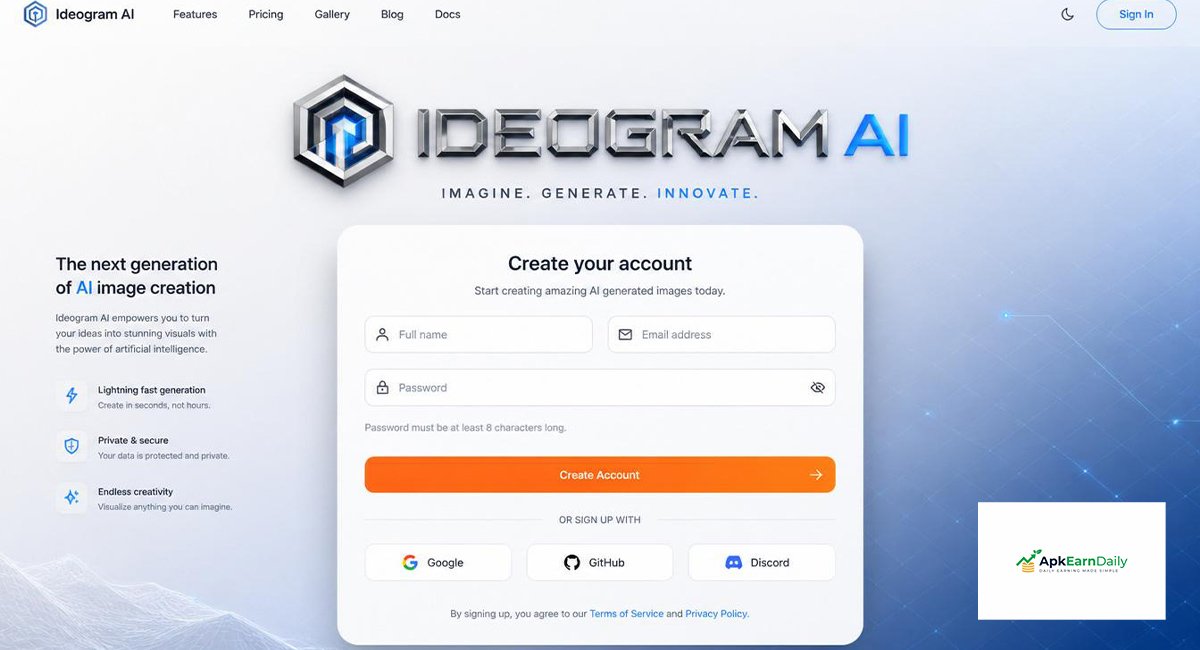
Before you can master how to use Ideogram AI, you need to create a free account. The process takes only a few minutes and doesn’t require any technical knowledge. Once you sign up, you can access the platform’s powerful Dashboard, explore its clean User interface, and begin creating stunning AI-generated images for personal or professional use.
The free plan is an excellent starting point for anyone who wants to experiment with AI image creation without spending money. Whether you are a student, blogger, freelancer, or business owner in Pakistan, the free account gives you enough features to learn the platform and build confidence before considering a paid subscription.
Visit the Official Ideogram AI Website
The first step is to visit the official Ideogram AI website using your preferred web browser. You’ll find a simple homepage with options to sign up or log in. Since this is the official platform, you always receive the latest features, security updates, and improvements in AI technology.
Before creating your account, take a few moments to explore the homepage. You’ll see example images created by the community, which can provide Design inspiration and help you understand what the platform is capable of producing. Looking at these examples is also a great way to discover new AI prompt examples for your future projects.
Sign Up Using Google or Email
Creating an account is straightforward. Click the Sign Up button and choose whether you want to register with your Google account or an email address. Google sign-in is usually faster because it skips the email verification process, while email registration gives you another secure option.
After entering your details, create a strong password if you are using email registration. Within a few moments, your account will be ready. This quick setup allows beginners to start learning how to use Ideogram AI without dealing with complicated registration steps.
Verify Your Account
If you register with an email address, Ideogram may ask you to verify your account. Open your inbox, find the verification email, and click the confirmation link. This simple step protects your account and ensures you receive important updates from the platform.
If you don’t see the email, check your spam or promotions folder. Verification usually takes less than a minute. Once completed, you can log in and begin your journey with this powerful AI graphic design tool.
Explore the Dashboard
After signing in, you’ll arrive at the Dashboard, which serves as the control center for all your creative work. The layout is clean, beginner-friendly, and easy to navigate. Even if you’ve never used an AI design platform before, you’ll quickly understand where everything is located.
From the dashboard, you can write Image prompts, choose different AI image styles, select your preferred Aspect ratio, generate new images, view previous creations, and manage your creative history. Spending a few minutes exploring these tools will make your overall AI design workflow much smoother.
Free Plan vs Paid Plan
The free plan offers enough features for beginners to learn how to use Ideogram AI and create impressive images. You can experiment with prompts, test different styles, and generate high-quality visuals without paying anything. This makes it a great choice for students, hobbyists, and new content creators.
The paid plan is designed for users who need more advanced features, faster image generation, higher limits, and additional creative tools. If you regularly create Marketing graphics, Social media posts, or client projects, upgrading later may improve your productivity. However, most beginners can comfortably learn the platform using the free version first.
Free Plan vs Paid Plan Comparison
| Feature | Free Plan | Paid Plan |
| Account Cost | Free | Monthly Subscription |
| AI image creation | Yes | Yes |
| Daily Image Limit | Limited | Higher Limits |
| Image Generation Speed | Standard | Faster |
| Premium Features | Limited | Full Access |
| Best For | Beginners | Professionals & Businesses |
Helpful Tips Before You Start
After creating your account, don’t rush into generating complex images. Start with simple prompts and gradually add more details as you become comfortable with the platform. Save your best prompts, study successful community creations, and keep experimenting with different artistic styles. The more you practice, the better your Creative AI skills will become, and you’ll soon be creating professional-quality visuals with confidence.
How to Use Ideogram AI Step by Step
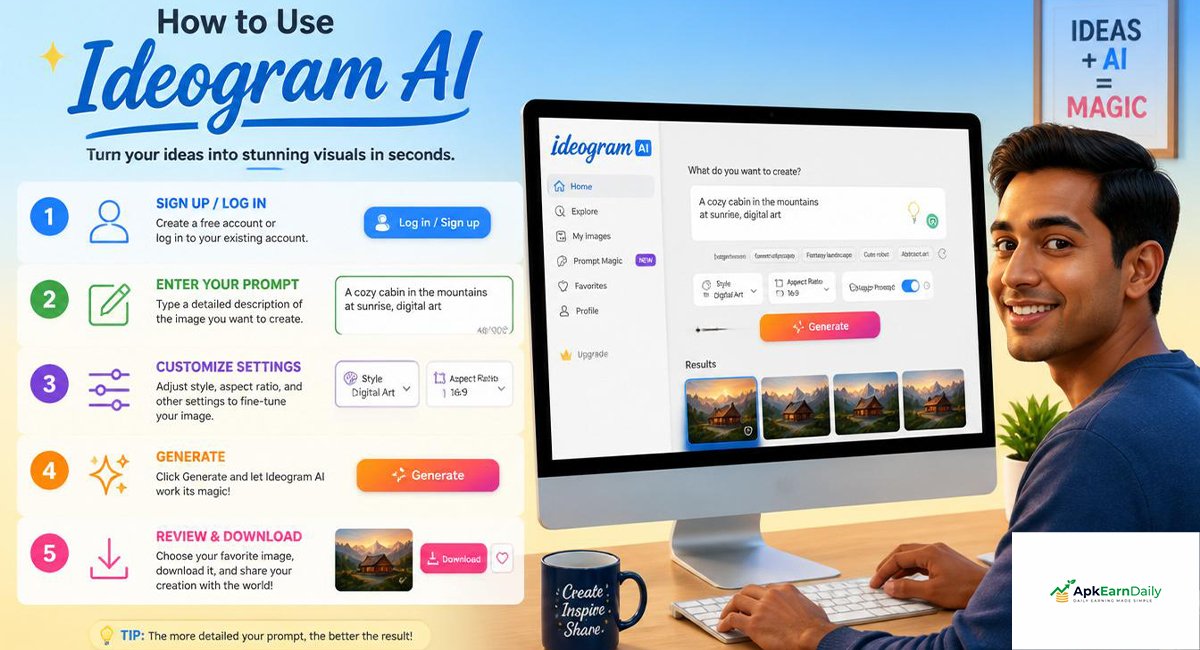
Once your account is ready, it’s time to learn how to use Ideogram AI to create professional images. The process is simple, even if you’ve never used an AI tool before. Every image starts with an idea, and the better you describe that idea, the better your results will be. Follow these steps carefully, and you’ll soon create high-quality visuals with confidence.
The platform is designed to make AI image creation easy for everyone. You don’t need advanced Graphic design skills or expensive software. With a few clicks, you can transform your imagination into stunning AI-generated artwork for blogs, businesses, education, or personal Creative projects.
Step 1 – Enter Your Image Prompt
Every image begins with a prompt. A prompt is simply a written description of what you want the AI to create. Think of it as giving clear instructions to a professional artist. The more specific your description, the better the AI understands your idea.
Instead of writing:
“A cat.”
Write something more detailed:
“A fluffy white cat sitting beside a rainy window, soft morning light, realistic photography, ultra-detailed, cozy atmosphere.”
This prompt gives the AI more information about lighting, mood, style, and subject. Good AI prompts are the foundation of excellent AI art creation.
Step 2 – Choose an Aspect Ratio
Before generating your image, select the correct Aspect ratio. This setting controls the shape of your final image and helps it fit different platforms.
For example:
| Platform | Recommended Image ratio |
| Instagram Post | 1:1 |
| Instagram Story | 9:16 |
| YouTube Thumbnail | 16:9 |
| Blog Featured Image | 16:9 |
| Pinterest Pin | 2:3 |
| Facebook Post | 1.91:1 |
Choosing the right ratio improves your Image composition and reduces the need for cropping later.
Step 3 – Select an Art Style
After writing your prompt, choose a style that matches your vision. Ideogram offers several built-in AI image styles that completely change the appearance of your artwork.
For example:
| Style | Best Use |
| Realistic | Product photos, blogs |
| Watercolor style | Greeting cards, illustrations |
| Anime style | Character art |
| Cartoon style | Children’s content |
| Cinematic | Movie posters |
| 3D Render | Product showcases |
Trying different Style presets is one of the easiest ways to discover fresh Design elements and improve your Creative design.
Step 4 – Generate Your Image
Once your prompt and settings are ready, click the Generate button. The AI processes your request and creates several image variations within seconds.
Each image may look slightly different because the AI explores multiple creative possibilities. Review every result carefully before choosing your favorite. Sometimes the second or third image offers better lighting, stronger composition, or more realistic details than the first one.
Step 5 – Review and Refine the Result
Your first image doesn’t have to be perfect. Professional creators often generate several versions before finding the ideal result. If something looks incorrect, simply improve your prompt and generate another image.
You can add more Prompt details such as lighting, camera angle, background, emotions, colors, textures, or artistic direction. Small adjustments often produce a dramatic improvement in AI image quality.
For example:
Instead of:
“Modern office.”
Try:
“A modern office with large glass windows, wooden furniture, indoor plants, natural daylight, minimal design, ultra-realistic photography.”
Step 6 – Download or Remix Your Image
After selecting your favorite image, you can download it to your computer or continue improving it. The remix feature allows you to keep the original concept while changing specific parts of the design.
For example, you can replace the background, adjust colors, improve lighting, or switch from realistic photography to digital illustration without starting from scratch. This flexible AI customization feature saves time and supports a smoother AI design workflow.
Step 7 – Organize and Reuse Your Best Prompts
Many beginners create excellent prompts but forget to save them. A better habit is to build your own prompt library. Save successful prompts in a document so you can reuse or improve them later.
Over time, you’ll notice which words consistently produce better Image output. This practice strengthens your Prompt engineering skills and helps you create professional images much faster.
Example Workflow
The table below shows a simple workflow that beginners can follow every time they create an image.
| Step | Action | Goal |
| 1 | Write a detailed prompt | Describe your idea clearly |
| 2 | Select the Aspect ratio | Match your platform |
| 3 | Choose an art style | Improve visual appearance |
| 4 | Generate images | Create multiple options |
| 5 | Refine the prompt | Improve quality |
| 6 | Download or remix | Finalize the design |
| 7 | Save the prompt | Reuse successful ideas |
Pro Tip for Better Results
Learning How to Use Ideogram AI isn’t about generating one perfect image on the first attempt. The best creators experiment constantly. They test different prompts, compare styles, refine settings, and study the results. Even changing a single word can transform an average picture into a stunning piece of Digital illustration. Treat every generation as a learning opportunity, and your skills will improve with every project.
Best Prompt Writing Tips for Better Results
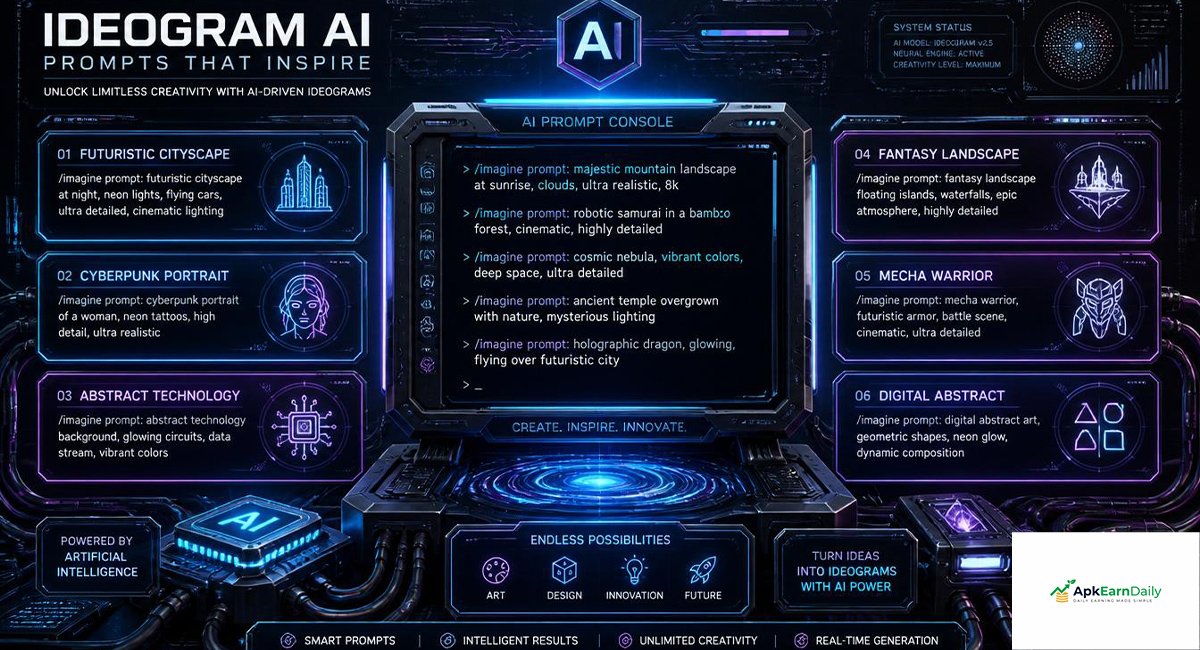
If you want to master how to use Ideogram AI, learning to write better prompts is more important than using advanced settings. A prompt is the instruction you give to the AI. Think of it as explaining your idea to a talented artist. Clear instructions produce better images, while vague descriptions often create random or inaccurate results.
Many beginners believe the AI will understand every idea automatically. In reality, the quality of your image depends heavily on your Prompt writing skills. The more precise your description, the easier it becomes for the AI to create professional-looking AI-generated artwork that matches your imagination.
Describe Your Idea Clearly
Always start with the main subject and then add supporting details. Tell the AI exactly what you want to see instead of using short or confusing phrases. Include the object, background, lighting, colors, mood, and style whenever possible.
For example, instead of writing:
“A bird.”
Write:
“A colorful blue macaw sitting on a tropical tree branch during sunrise with soft golden light, realistic photography, ultra-detailed feathers.”
The second prompt gives much more information, resulting in better AI image quality and stronger Image composition.
Add Colors, Lighting, and Camera Angles
Professional-looking images often come from small details. Don’t stop after describing the subject. Include information about lighting, colors, weather, perspective, and camera angle. These details help the AI understand the atmosphere you want.
Useful words include:
| Element | Examples |
| Lighting | Soft light, golden hour, cinematic lighting, studio lighting |
| Colors | Pastel colors, vibrant colors, monochrome, neon |
| Camera Angle | Close-up, aerial view, wide-angle, eye level |
| Mood | Peaceful, dramatic, mysterious, joyful |
| Quality | Ultra realistic, highly detailed, 8K, sharp focus |
Adding these Prompt details creates richer images with better depth and realism.
Include Art Style Keywords
One of the easiest ways to improve your images is by mentioning an artistic style. Ideogram understands many creative styles, allowing you to transform the same idea into completely different artwork.
For example, these prompts describe the same subject but produce unique results:
| Prompt | Expected Style |
| A mountain landscape, realistic photography | Realistic |
| A mountain landscape, Watercolor style | Watercolor painting |
| A mountain landscape, Anime style | Anime artwork |
| A mountain landscape, Cartoon style | Cartoon illustration |
| A mountain landscape, digital painting | Fantasy art |
Experimenting with different AI image styles is one of the fastest ways to discover your personal creative style.
Use Typography Prompts Correctly
A feature that makes Ideogram AI stand out is its ability to create readable text inside images. This is especially useful for posters, logos, banners, and advertisements.
For example, instead of writing:
“Birthday poster.”
Try:
“Happy Birthday written in elegant golden letters with colorful balloons, confetti, blue background, modern celebration poster, realistic lighting.”
This approach improves Typography generation and creates professional AI-generated posters suitable for events, marketing, and social media.
Experiment with Prompt Variations
Don’t expect your first prompt to be perfect. Experienced creators often test several versions before choosing the best result. Even changing one adjective or adding a lighting effect can dramatically improve the final image.
For example:
Prompt 1
A modern living room.
Prompt 2
A luxury modern living room with marble flooring, large glass windows, indoor plants, natural sunlight, Scandinavian interior design, ultra-realistic photography.
Although both prompts describe the same room, the second one produces a far richer and more professional image because it includes stronger Prompt engineering techniques.
Best AI Prompt Examples
The easiest way to improve is by studying high-quality prompts. The examples below can help you understand how professionals write effective prompts.
| Purpose | Prompt Example |
| Blog Featured Image | Modern AI workspace with laptop, futuristic holograms, blue lighting, realistic photography |
| Logo | Minimal lion logo, premium gold color, black background, luxury branding |
| YouTube Thumbnail | Excited businessman pointing at AI robot, bright colors, cinematic lighting, bold text |
| Social Media | Young entrepreneur working on laptop in modern office, clean background, vibrant colors |
| Product Advertisement | Luxury perfume bottle on reflective surface, dramatic lighting, premium commercial photography |
| Travel Poster | Beautiful mountains in northern Pakistan during sunrise, realistic photography, vibrant sky |
These Best AI prompts demonstrate how adding descriptive details creates stronger and more attractive visuals.
Common Prompt Formula
If you’re unsure how to start, use this simple formula:
| Subject | + | Details | + | Style | + | Lighting | + | Quality |
| Main object | Environment | Artistic style | Mood | Ultra realistic |
Example Formula
A white sports car on a mountain road, sunset, cinematic lighting, realistic photography, ultra-detailed, 8K quality.
This structure works for almost every type of Creative image generation and helps beginners produce consistent results.
Expert Tip
The secret behind amazing AI images isn’t using complicated words. It’s giving clear instructions. Imagine you’re explaining your idea to a professional photographer who has never seen your vision before. The clearer your description, the better the final result. As you continue practicing How to Use Ideogram AI, you’ll naturally develop better prompt-writing skills and create images that look more realistic, creative, and professional.
How to Create Different Types of Images with Ideogram AI
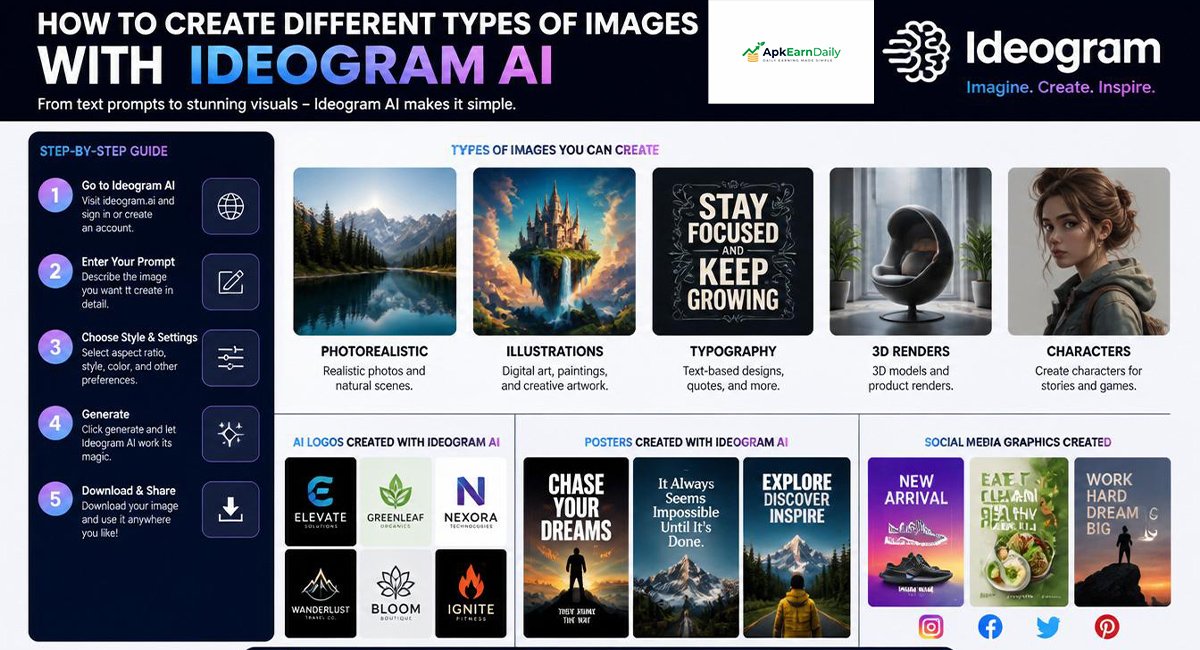
One of the biggest advantages of learning How to Use Ideogram AI is its versatility. You are not limited to creating one type of image. With the right prompt, you can design logos, blog featured images, YouTube thumbnails, social media graphics, posters, product mockups, wallpapers, and much more. This flexibility makes Ideogram AI a valuable AI design tool for beginners and professionals alike.
The secret to creating impressive visuals is choosing the right prompt for the right purpose. Every image serves a different audience, so your prompt should reflect that goal. Whether you are building a personal brand or designing Marketing visuals for a business, understanding how each image type works will help you achieve better results.
Create AI Logos
Creating a logo with Ideogram AI is simple because the platform excels at AI typography and clear Text rendering. Instead of spending hours designing from scratch, you can describe your brand and let the AI generate several creative concepts.
A strong logo prompt should include the business name, preferred colors, design style, icon, and overall mood.
Example Prompt
Modern minimalist coffee shop logo, black and gold color palette, coffee cup icon, elegant typography, premium branding, clean white background.
After generating the results, compare different versions and choose the one that best represents your brand. If needed, remix the design to improve colors or layout before finalizing your AI-generated logos.
Create YouTube Thumbnails
A YouTube thumbnail must grab attention immediately. Bright colors, expressive faces, bold text, and strong contrast usually perform better because viewers notice them while scrolling.
When writing your prompt, explain the subject, background, facial expression, lighting, and typography.
Example Prompt
Young entrepreneur surprised by AI robot, futuristic office, bright blue lighting, bold yellow title text, high contrast, professional YouTube thumbnail.
Well-designed thumbnails increase click-through rates and make your videos appear more professional.
Create Blog Featured Images
Every blog article needs a featured image that attracts readers before they even begin reading. A high-quality image also improves your website’s visual appeal and helps communicate the topic quickly.
For example, if your article discusses artificial intelligence, your prompt might be:
Modern workspace with laptop displaying artificial intelligence interface, glowing holograms, blue technology background, realistic photography, clean composition.
This type of AI illustration creates attractive Visual content that supports your article and enhances the reader’s first impression.
Create Social Media Graphics
Social media platforms demand eye-catching images because users scroll through hundreds of posts every day. Ideogram AI allows you to create professional Social media graphics that suit Instagram, Facebook, LinkedIn, Pinterest, and X.
Include your platform, audience, colors, and message in the prompt for better results.
Example Prompt
Motivational business quote in elegant typography, blue gradient background, modern design, clean layout, Instagram post, premium branding.
Using consistent colors and fonts across your posts also strengthens your brand identity and improves audience recognition.
Create Posters and Flyers
Posters need a balance between attractive visuals and readable text. Since Ideogram AI performs exceptionally well with typography, it becomes an excellent choice for designing event posters, promotional flyers, and advertisements.
A detailed prompt could look like this:
Music festival poster, colorful neon lights, bold headline, concert stage, energetic atmosphere, modern typography, premium poster design.
This combination of artwork and readable text produces attractive AI-generated posters suitable for both digital and print marketing.
Create Product Mockups
If you sell physical or digital products, professional product images can increase customer trust. Instead of hiring a photographer, you can use Ideogram to create realistic mockups for presentations and online stores.
For example:
Luxury perfume bottle on black marble surface, golden lighting, premium commercial photography, elegant shadows, high-end branding.
High-quality product mockups improve your Marketing graphics and help customers imagine the product more clearly.
Create Wallpapers and Digital Art
Many artists use Ideogram AI to create stunning wallpapers and unique Digital artwork for desktops, smartphones, and personal collections. These projects allow you to experiment with different artistic directions while improving your creative skills.
For example:
Fantasy castle above the clouds during sunset, glowing sky, magical atmosphere, ultra-detailed digital painting, cinematic lighting.
You can also explore fantasy, sci-fi, cyberpunk, or nature themes to create visually striking artwork for personal enjoyment or commercial use.
Recommended Prompt Examples
| Image Type | Recommended Prompt |
| Logo | Modern technology company logo, blue and silver colors, minimalist design, premium typography |
| Blog Featured Image | AI workspace with laptop, futuristic holograms, realistic photography |
| YouTube Thumbnail | Excited creator pointing at AI robot, bright colors, bold title, cinematic lighting |
| Instagram Post | Modern motivational quote, elegant typography, minimal background |
| Poster | Summer music festival, colorful lights, modern typography, vibrant atmosphere |
| Product Mockup | Luxury smartwatch on reflective surface, premium studio lighting |
| Wallpaper | Snow-covered mountains during sunrise, realistic photography, ultra-detailed |
Which Image Type Should You Create?
The table below helps you choose the right image based on your goal.
| Goal | Best Image Type |
| Build a brand | Logo |
| Increase blog engagement | Featured Image |
| Grow YouTube channel | Thumbnail |
| Improve social presence | Social Media Post |
| Promote an event | Poster |
| Sell products | Product Mockup |
| Personal creativity | Wallpaper or Digital Art |
Expert Tip
The best creators rarely stop after generating one image. They compare several versions, improve the prompt, adjust colors, experiment with different AI image styles, and refine the final result until it matches their vision. By practicing regularly, you’ll not only learn how to use Ideogram AI more effectively but also develop a stronger eye for Creative design and professional-quality visuals.
Best Ideogram AI Settings Explained
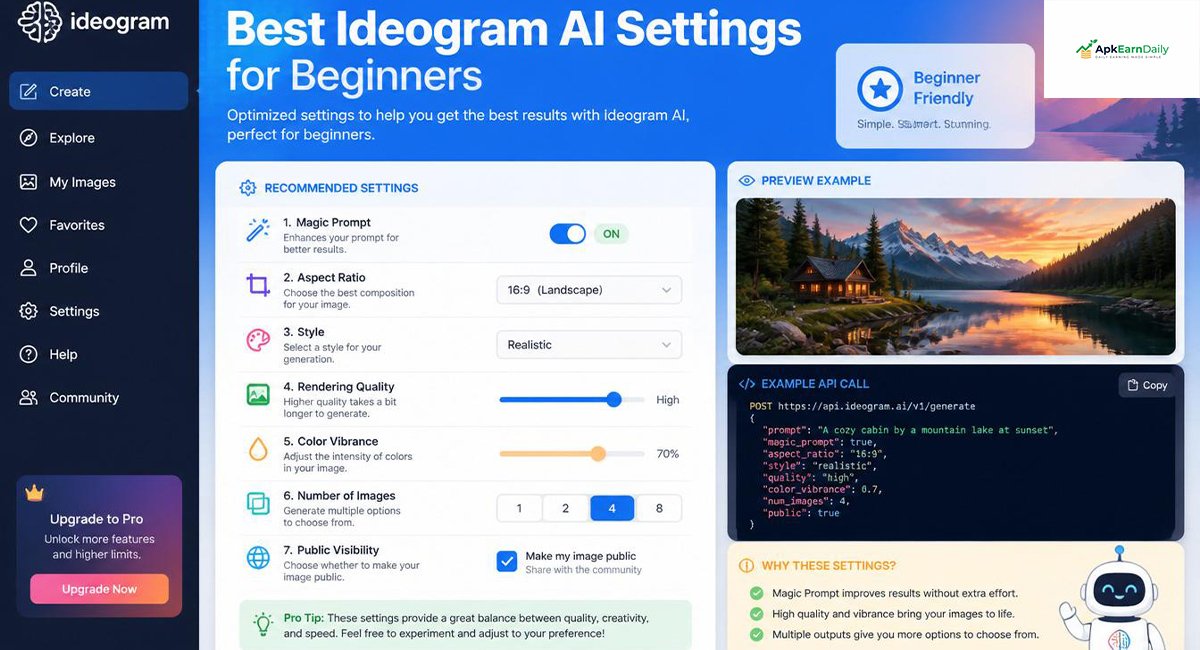
Learning how to use Ideogram AI is not only about writing great prompts. The settings you choose also have a huge impact on the final result. Even an excellent prompt can produce an average image if the wrong options are selected. Understanding these settings helps you create cleaner, sharper, and more professional visuals for every project.
The good news is that Ideogram AI keeps its settings simple. You don’t need to be a designer to understand them. Once you know what each option does, you can quickly adjust your images for blogs, YouTube, social media, business branding, or personal Creative projects.
Aspect Ratio Settings
The Aspect ratio determines the shape of your image. Choosing the correct ratio ensures your design fits perfectly on different platforms without cropping important elements. Using the wrong ratio may cut off text or make the image look stretched.
Here are the most commonly used ratios:
| Platform | Recommended Image ratio |
| Blog Featured Image | 16:9 |
| YouTube Thumbnail | 16:9 |
| Instagram Post | 1:1 |
| Instagram Story | 9:16 |
| Facebook Cover | 16:9 |
| Pinterest Pin | 2:3 |
| Mobile Wallpaper | 9:16 |
Always decide where your image will be used before selecting the ratio. This small step improves Image composition and saves editing time later.
Style Presets
One of the strongest features of Ideogram AI is its built-in Style presets. These presets change the overall appearance of your image without requiring complex editing. Instead of rewriting your prompt, you can simply switch styles and compare different creative results.
Popular styles include realistic photography, digital painting, fantasy art, Watercolor style, Anime style, and Cartoon style. If you’re unsure which style fits your project, generate the same prompt using several presets and compare the results. This approach often leads to fresh ideas and better AI creativity.
Magic Prompt
Magic Prompt is one of the smartest tools inside Ideogram AI. It automatically improves your basic prompt by adding useful descriptive details. This feature is especially helpful for beginners who are still learning Prompt engineering.
For example, if your prompt is:
A luxury bedroom.
Magic Prompt may expand it into a richer description with elegant furniture, warm lighting, realistic textures, and premium interior design. This improves AI image quality without requiring you to write long prompts yourself.
Image Quality Settings
The quality setting controls the amount of detail in your final image. Higher-quality images usually contain sharper textures, cleaner lighting, and more realistic shadows. Although they may take slightly longer to generate, the improvement is often worth the wait.
If you’re creating images for professional presentations, websites, or advertising, always choose the highest available quality. Better Image output creates a stronger first impression and makes your designs look more polished.
Private vs Public Images
Ideogram allows users to decide whether their creations remain private or become visible to the community. This setting is useful if you’re working on client projects or confidential business designs.
Public images can inspire other users and help you receive feedback from the community. Private images offer greater security for commercial work, branding projects, and exclusive Marketing visuals. Before publishing important designs, always check your privacy settings.
Image Remix and Customization
Sometimes your first result is close to perfect but still needs small improvements. Instead of starting over, you can remix the image and adjust specific elements. This saves time and gives you more control over the creative process.
You can improve colors, replace objects, modify lighting, or adjust the background while keeping the original concept. This flexible Image customization feature supports a faster AI design workflow and helps you achieve professional-quality results.
Best Settings for Different Projects
Choosing the right settings depends on the type of content you’re creating.
| Project | Best Settings |
| Blog Featured Image | 16:9 ratio, Realistic style, High quality |
| YouTube Thumbnail | 16:9 ratio, Bright colors, Bold typography |
| Instagram Post | 1:1 ratio, Vibrant style, High contrast |
| Logo Design | Minimal style, Clean background, High quality |
| Poster Design | Portrait ratio, Strong typography, Premium quality |
| Product Advertisement | Realistic photography, Studio lighting, Maximum quality |
| Wallpaper | High resolution, Landscape or Portrait, Cinematic style |
Using these recommended settings helps you produce more consistent and professional images for different platforms.
Common Setting Mistakes
Many beginners focus only on the prompt and ignore the settings. This often leads to images with poor framing, incorrect proportions, or unnecessary cropping. Another common mistake is using the same settings for every project, even though different platforms require different image dimensions.
A better approach is to think about your final goal before generating the image. Ask yourself where the image will be published and what style best matches your audience. Making these decisions early improves the overall quality of your AI visual design and reduces the need for repeated edits.
Expert Tip
There isn’t one perfect setting that works for every project. Professional creators experiment with different ratios, styles, and quality options until they find the best combination. As you continue practicing How to Use Ideogram AI, you’ll develop your own workflow and quickly discover which settings produce the most attractive results for your specific needs.
Common Ideogram AI Mistakes to Avoid
When learning How to Use Ideogram AI, making mistakes is completely normal. Every beginner creates prompts that don’t work as expected or selects settings that produce average results. The important thing is to recognize these mistakes early and learn how to fix them. Small improvements in your workflow can make a huge difference in the quality of your images.
Most disappointing results are not caused by the AI itself. They happen because the prompt is unclear, the settings don’t match the project, or users expect perfect images on the first attempt. By avoiding the common mistakes below, you’ll create better visuals faster and build confidence while using Ideogram AI.
Writing Vague Prompts
The biggest mistake beginners make is writing very short or unclear prompts. A prompt like “beautiful house” gives the AI very little information, so the result may not match your expectations.
Instead, include important details such as the subject, location, lighting, colors, camera angle, and artistic style.
Poor Prompt
Beautiful house
Better Prompt
Modern luxury house beside a lake during sunset, large glass windows, warm golden lighting, realistic photography, ultra-detailed architecture.
The second prompt provides stronger AI prompts, resulting in more accurate and visually appealing AI image creation.
Ignoring Image Dimensions
Another common mistake is forgetting to choose the correct Aspect ratio before generating an image. A square image may work perfectly for Instagram, but it won’t fit a YouTube thumbnail or a blog banner.
Always think about where your image will be used before selecting the ratio.
| Platform | Recommended Ratio |
| Blog | 16:9 |
| YouTube | 16:9 |
| Instagram Post | 1:1 |
| Story/Reels | 9:16 |
| 2:3 |
Selecting the proper dimensions improves Image composition and reduces unnecessary cropping.
Choosing the Wrong Style
Many users generate realistic images when they actually need illustrations or posters. Choosing the wrong artistic style can completely change the final appearance of your design.
For example, if you’re designing a children’s book cover, a Cartoon style usually works better than realistic photography. If you’re creating a premium product advertisement, realistic lighting and great detail are often the better choice.
Always match the style to the purpose of your project.
Adding Too Many Details
Detailed prompts are useful, but adding too much information can confuse the AI. Some beginners try to include every possible idea in one prompt, making the final image look crowded or inconsistent.
A better approach is to focus on the most important elements first. Generate the image, review the result, and then improve it by adding extra Prompt details if necessary. This step-by-step method produces cleaner and more professional Image output.
Expecting Perfect Results on the First Attempt
Even experienced creators rarely get the perfect image on their first try. AI image generation is an iterative process. Professionals usually test several prompts, compare different versions, and make small improvements before choosing the final design.
If your first image isn’t perfect, don’t delete the idea. Instead, adjust the lighting, background, colors, or wording and generate another version. This simple habit will improve your AI creativity over time.
Forgetting to Review Text Carefully
Although Ideogram AI is excellent at Text rendering, you should still check every word before downloading your image. Small spelling mistakes or formatting issues can reduce the quality of your design, especially for logos, posters, and advertisements.
Always zoom in and review the text carefully. This extra minute can save you from publishing graphics with noticeable errors.
Not Saving Successful Prompts
Many beginners create excellent images but forget the prompt they used. Later, they struggle to recreate the same style or quality.
Create a personal prompt library where you save your best prompts. Organize them by category, such as blog images, product advertisements, logos, or Social media posts. Over time, this collection will become one of your most valuable creative resources.
Common Mistakes and Their Solutions
| Mistake | Better Solution |
| Writing short prompts | Add subject, lighting, colors, and style |
| Wrong Aspect ratio | Choose dimensions based on the platform |
| Using the wrong style | Match the style with your project |
| Overloading prompts | Keep prompts clear and focused |
| Expecting perfect results | Generate multiple versions and refine them |
| Ignoring text review | Check spelling and readability before downloading |
| Not saving prompts | Build your own prompt library |
Best Practices for Beginners
If you’re serious about mastering How to Use Ideogram AI, treat every image as a learning experience. Study your successful prompts and compare them with the ones that produced weaker results. Notice how small changes in wording, lighting, or style affect the final image. Over time, you’ll naturally improve your Creative AI skills and develop a workflow that consistently produces high-quality visuals.
Another smart habit is to explore images created by other users. Observe how professionals structure their prompts, choose styles, and arrange design elements. You don’t need to copy their work, but you can learn valuable techniques that improve your own AI content creation and make your designs look more polished.
Expert Tip
The best creators don’t rely on luck—they rely on experimentation. Generate several versions of the same idea, compare the results, and refine your prompt until it matches your vision. With consistent practice, you’ll not only understand how to use Ideogram AI more effectively but also create images that look professional, unique, and ready for real-world use.
Ideogram AI vs Other AI Image Generators
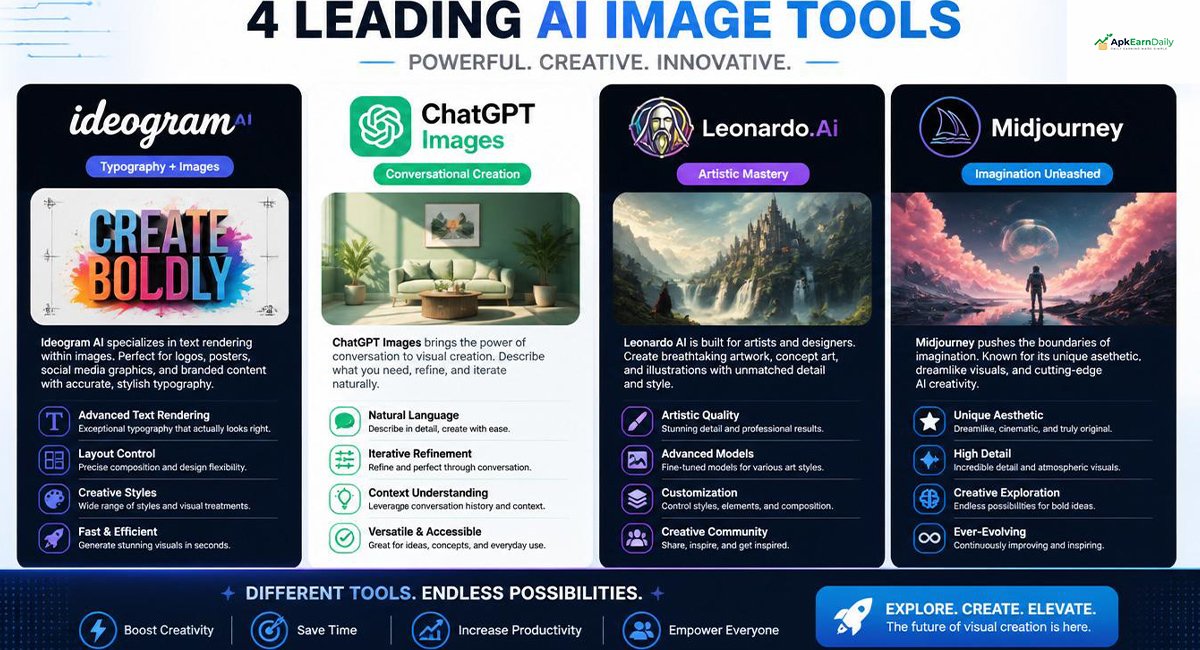
Choosing the right AI image generator can be confusing because every platform offers different strengths. If your goal is to master how to use Ideogram AI, it helps to compare it with other popular tools before making a decision. While some platforms focus on realistic photography, others specialize in artistic images or advanced editing. Ideogram AI has earned a strong reputation because of its excellent Text rendering, beginner-friendly interface, and impressive image quality.
The best AI tool depends on your needs. Bloggers may prefer fast image generation, marketers often need eye-catching advertisements, and designers usually want greater creative control. The comparison below highlights the key differences to help you choose the platform that fits your workflow.
Ideogram AI vs ChatGPT Images
ChatGPT Images is excellent for generating creative visuals directly through conversation. It is easy to use and works well for brainstorming ideas. However, Ideogram AI stands out when you need accurate typography, professional posters, or logo concepts with readable text.
If your work involves branding, advertisements, or social media content, Ideogram usually provides stronger results for text-based designs.
Ideogram AI vs Leonardo AI
Leonardo AI is popular among digital artists because it offers advanced customization and multiple creative models. It is a great choice for concept art, game assets, and detailed illustrations.
On the other hand, Ideogram AI is easier for beginners. Its simple interface, excellent typography, and fast workflow make it ideal for bloggers, freelancers, and small business owners who want professional images without a steep learning curve.
Ideogram AI vs Midjourney
Midjourney is famous for producing highly artistic and cinematic images. It delivers outstanding visual quality, but beginners often find it difficult to learn because it requires more experience with prompts.
Ideogram AI provides a much simpler experience. You can generate beautiful images quickly without spending weeks learning advanced prompt techniques. This makes it a better choice for everyday content creation.
Ideogram AI vs Flux AI
Flux AI has gained popularity for its realistic image generation and detailed outputs. It performs well for photography-style visuals and creative experiments.
However, Ideogram AI continues to lead in typography, branding, and marketing materials. If your projects require readable text inside images, logos, or posters, Ideogram remains one of the strongest options available.
Comparison Table
| Feature | Ideogram AI | ChatGPT Images | Leonardo AI | Midjourney | Flux AI |
| Beginner Friendly | ⭐⭐⭐⭐⭐ | ⭐⭐⭐⭐⭐ | ⭐⭐⭐⭐ | ⭐⭐⭐ | ⭐⭐⭐⭐ |
| Text rendering | ⭐⭐⭐⭐⭐ | ⭐⭐⭐ | ⭐⭐⭐ | ⭐⭐ | ⭐⭐⭐ |
| Image Quality | ⭐⭐⭐⭐⭐ | ⭐⭐⭐⭐ | ⭐⭐⭐⭐⭐ | ⭐⭐⭐⭐⭐ | ⭐⭐⭐⭐⭐ |
| Logo Design | ⭐⭐⭐⭐⭐ | ⭐⭐⭐ | ⭐⭐⭐⭐ | ⭐⭐⭐ | ⭐⭐⭐ |
| Poster Design | ⭐⭐⭐⭐⭐ | ⭐⭐⭐ | ⭐⭐⭐⭐ | ⭐⭐⭐ | ⭐⭐⭐ |
| Ease of Use | ⭐⭐⭐⭐⭐ | ⭐⭐⭐⭐⭐ | ⭐⭐⭐⭐ | ⭐⭐⭐ | ⭐⭐⭐⭐ |
| Best For | Beginners & Marketing | Everyday Creativity | Professional Artists | Artistic Images | Realistic Photography |
Which AI Image Generator Should You Choose?
If you are completely new to AI image generation, Ideogram AI is one of the easiest platforms to learn. It combines a clean interface with powerful image generation and outstanding typography. Bloggers, students, freelancers, and business owners can quickly create high-quality visuals without investing hours in learning complicated tools.
Professional artists who need advanced customization may prefer Leonardo AI or Midjourney. However, for most everyday users who want attractive images, marketing materials, logos, and social media graphics, Ideogram offers an excellent balance between simplicity and performance.
Frequently Asked Questions (FAQs)
Is Ideogram AI free to use?
Yes, Ideogram AI offers a free plan that lets you generate AI images and explore its main features. Paid plans are available if you need higher usage limits, faster generation, and additional premium tools.
How to use Ideogram for free?
Visit the official Ideogram AI website, create a free account using your Google account or email, and start generating images by entering text prompts. The free plan is perfect for beginners who want to learn the platform.
Is Ideogram AI safe to use?
Yes, Ideogram AI is generally safe to use when accessed through its official website. Always avoid sharing sensitive personal information in prompts and review the platform’s privacy policy before using it for commercial projects.
How to write prompts for an Ideogram?
Write clear and detailed prompts by describing the subject, background, lighting, colors, and artistic style. The more specific your prompt is, the more accurate and high-quality the generated image will be.
What is Ideogram AI mainly used for?
Ideogram AI is mainly used to create AI-generated images, logos, posters, social media graphics, marketing visuals, and digital artwork from text prompts. It is especially known for generating images with clear and readable text.
Conclusion
If you want to build a successful AI career, read our guide on the Highest Paying Earning Skills in Pakistan.
Learning how to use Ideogram AI is much easier than many people expect. You don’t need professional design skills or expensive software to create impressive visuals. With clear prompts, the right settings, and regular practice, you can generate eye-catching images for blogs, businesses, education, and personal projects within minutes.
Throughout this guide, you’ve learned how to create a free account, write better prompts, choose the right settings, avoid common mistakes, and compare Ideogram with other leading AI image generators. These skills will help you produce more professional results while saving time and effort.
Remember that great images rarely come from a single attempt. Experiment with different prompts, test multiple styles, and refine your ideas until they match your vision. Every project helps you improve your creative skills and understand the platform more deeply.
If you’re looking for an AI tool that combines simplicity, speed, excellent typography, and high-quality image generation, Ideogram AI is an outstanding choice in 2026. Start experimenting today, keep building your prompt library, and let your imagination turn simple ideas into stunning visual creations.
You can also learn how to Make Money with DeepSeek in 2026 if you want to use AI for online income.
Key Takeaways
| Topic | Summary |
| Best for | Beginners, bloggers, marketers, freelancers, and businesses |
| Biggest Strength | Excellent text rendering and beginner-friendly interface |
| Main Skill to Learn | Writing detailed prompts |
| Best Practice | Test multiple prompts and refine your results |
| Recommended Use | Logos, blog images, posters, thumbnails, social media graphics, and product marketing |